VMware releases VCP-Cloud exam

VMware has released the VCP-Cloud exam. With the release of the VCP-Cloud exam there are now two ways to obtain the VCP-Cloud certification.

From the VMware Education and Certification blog:

Path 1
If you are already a VCP5-DV (VMware Certified Professional 5 – Datacenter Virtualization, formerly known as VCP5), all you need to do is pass the IaaS exam to earn your VCP-Cloud certification. There are two courses that can help you prepare for this exam, but they aren’t required:

Path 2
If you are just starting with VMware technologies or don’t have VCP5-DV certification, then you need to take two steps to earn your VCP-Cloud certification:

  1. Attend one of these qualifying courses:
  2. Pass the VCP-Cloud exam

Learn more about the VCP-Cloud certification and the two paths towards earning it at www.vmware.com/go/vcpcloud.

Free VMware self-paced eLearning courses

Are you looking for basic understanding of some of VMware products outside of just the core of vCenter and ESXi? If so, check out the free elearning courses offered by VMware Education. There are courses on Site Recovery Manager, vFabric, vCenter Operations Manager, vShield, vCloud Director, VMware View and What’s New in vSPhere 5.1. In addition there are courses on virtualizing Microsoft Tier 1 applications like Exchange 2010, SQL server and SharePoint.

The courses are the same content that VMware partners have used to attain accreditation for delivering VMware solutions for disaster recovery and virtualizing business critical application.

While these courses won’t replace VMware Education’s live online or instructor lead classes, they will help you to get a basic understanding of concepts, capabilities and design choices when working with the various products.

The english language version is available here.

Over 50 Free Instructional Videos from VMware

Earlier this month, VMware launched a new site, VMwarelearning.com with 50+ technical videos. These videos offer tips, design guidelines, best practices and product feature knowledge from VMware technical experts. This is a terrific way to get valuable information and technical expertise for FREE!

Configure vSphere 5.1 for remote debug logging

Recently I have been working with customers on designs for new vSphere 5.1 installs and upgrades. As part of the design, I have been specifying the installation and configuration of the vSphere ESXi Dump Collector service on their Windows vCenter Server. The ESXi dump collector service allows the collection of the diagnostic dump information generated when an ESXi host has a critical fault and generates a “purple diagnostic screen.”

This post is a walk through of installing and configuring the ESXi Dump Collector service on vCenter and configuring an ESXi host to use it.

The Windows Server 2008 R2 VMs I use for vCenter are configured with additional drives for installing applications and storing data. In this example from my virtual lab, I have a “d:\” drive for applications and data.

Install the vSphere ESXi Dump Collector

The installer for the dump collector in included on the vCenter installer ISO image. I mount the ISO image to the Windows 2008 R2 VM where I have installed vCenter server.

Launch “autorun.exe” as an administrator.

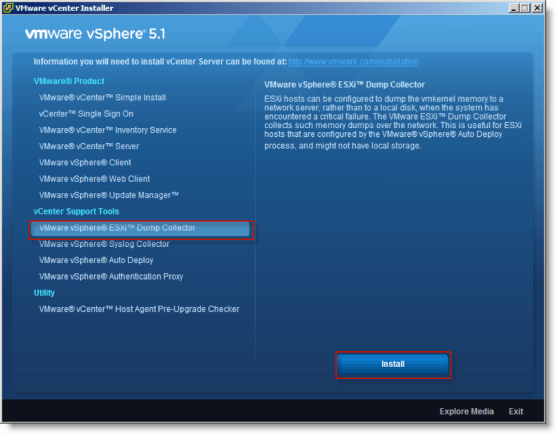
From the VMware vCenter Installer, select “VMware vSphere ESXi Dump Collector”. Then click “Install” to begin the installation.
After the installer starts, select “English” as the language.

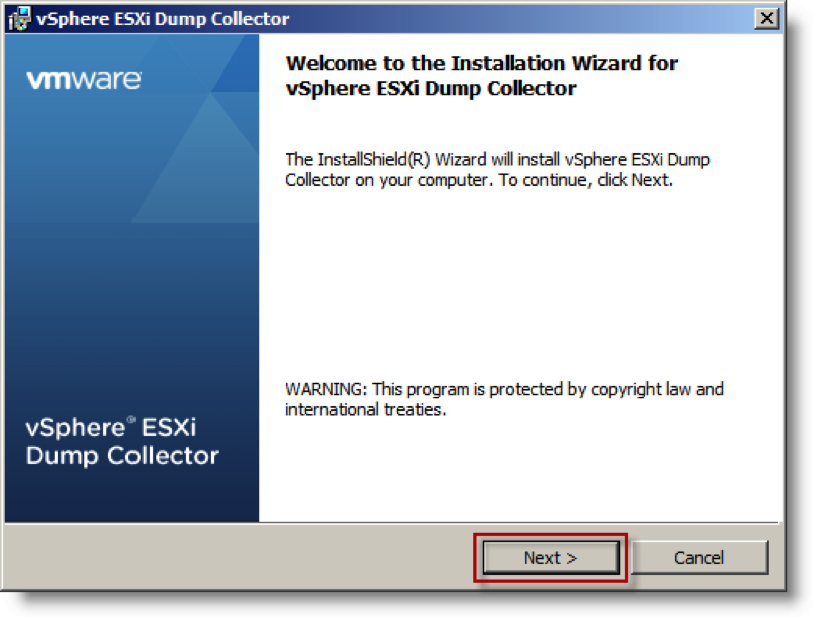
On the Welcome… page, click “Next >.”

On the End User Patent Agreement page, click “Next >.”
On the End User License Agreement page, select “I accept…”; click “Next >.”
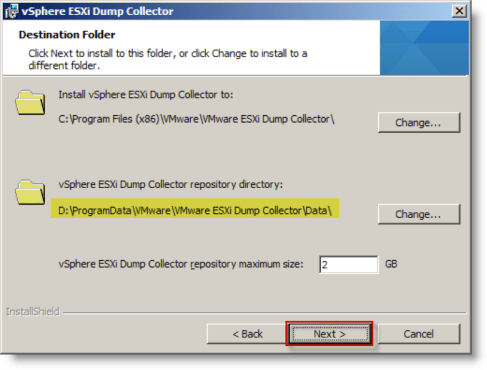
On the Destination Folder page, click the “Change…” button beside “vSphere ESXi Dump Collector repository directory:”
On the Change Current Destination Folder page, change the “Folder name:” value to “d:\…”. Click “OK.”
Back on the Destination Folder page, observe that the path has been updated and click “Next >”
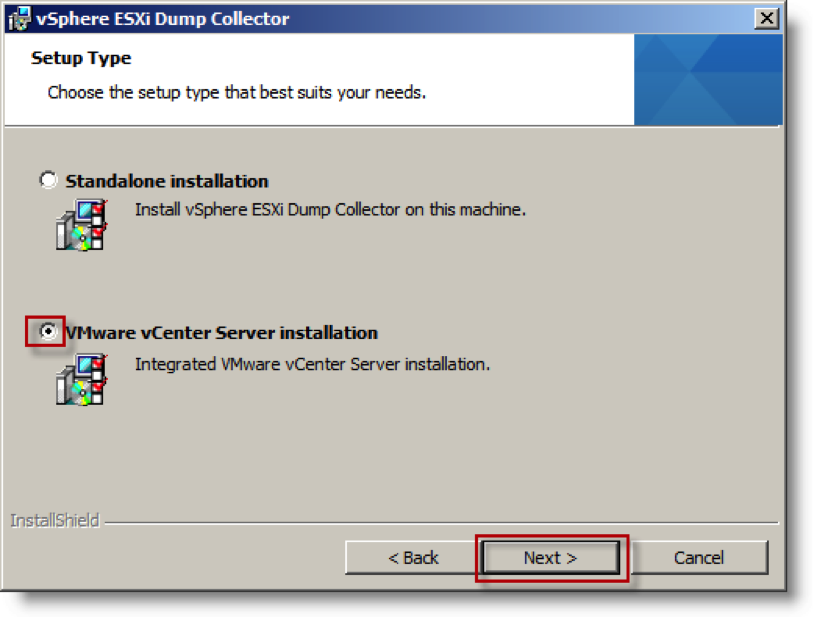
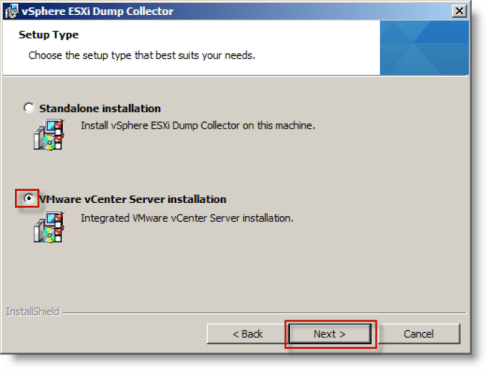
On the Setup Type page, select “VMware vCenter Server installation”, then click “Next >.”
On the VMware vCenter Server Information page, enter the appropriate information for connecting to vCenter. Click “Next >” to continue.

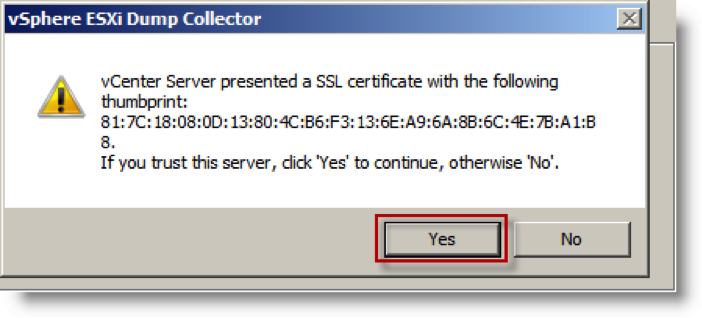
If you are using the default self-signed SSL certificate for vCenter, you will receive a message with the SHA1 thumbprint value for the vCenter server’s certificate.  Click “Yes” to trust that the certificate for connecting to the vCenter server.

You can verify the thumbprint by looking at the certificate properties on your vCenter server.  Notice that the thumbprint from the installer matches the thumbprint on the vCenter server’s certificate.

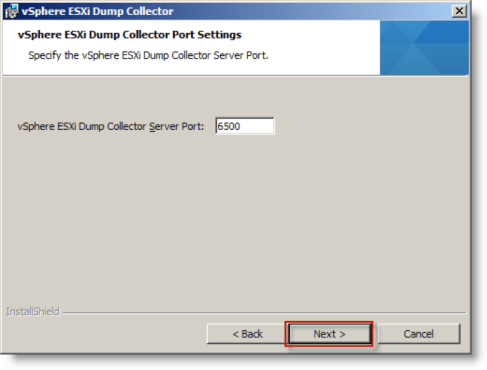
On the vSphere ESXi Dump Collector Port Settings page, click “Next >” to accept the default value of UDP port 6500.
On the vSphere ESXi Dump Collector Identification page, select the FQDN of the vCenter server and click “Next >.”

On the Ready to Install page, click “Install.”

After the installer has completed, click “Finish” on the Installer Completed page.

You can view the configured settings with the vSphere Client by selecting VMware ESXi Dump Collector from the Administration page.

You can also view the configuration with the vSphere Web Client by selecting the vCenter server, then browsing to the “Manage” tab and selecting “ESXi Dump Collector” under “Settings.”

Configuring an ESXi host to transmit the core dump over the network to the dump collector service.

Now that we have installed the dump collector service, we need to configure the ESXi hosts to send their diagnostic dump files to the vCenter server.
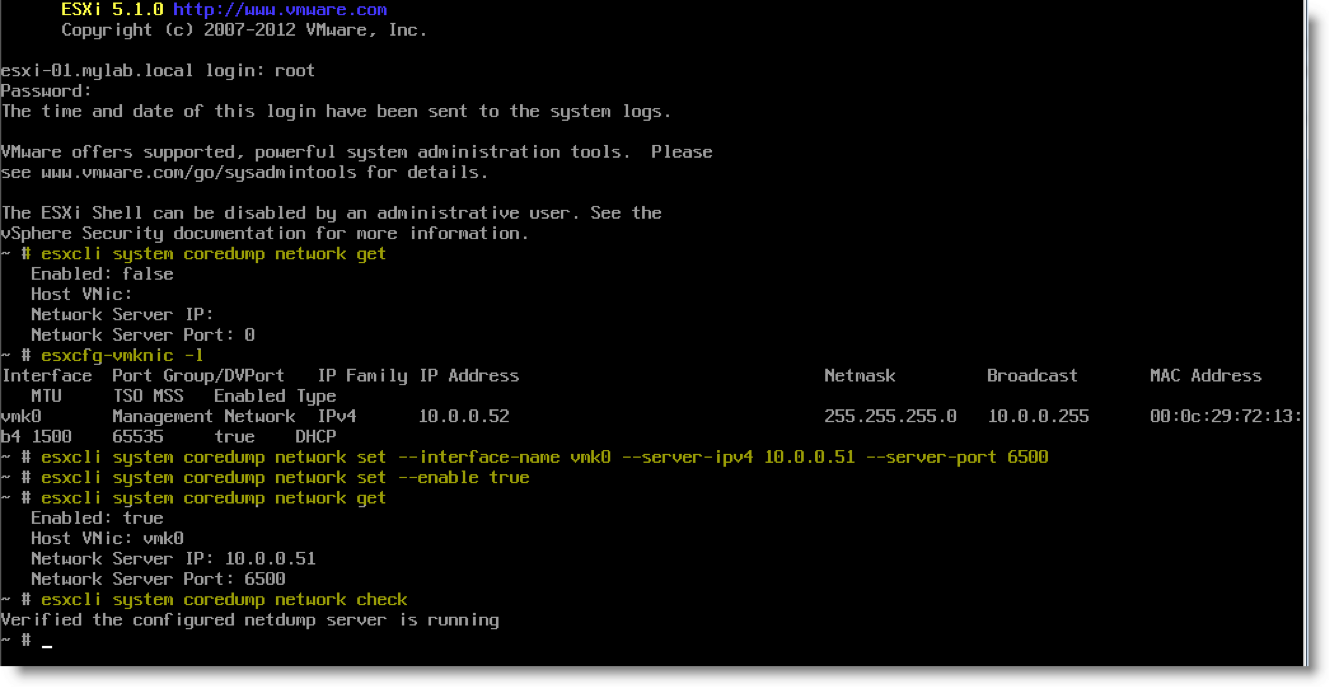
I set this up through the ESXi console. You will notice that I am logged in a “root” as I had not configured the ESXi host to use Active Directory authentication yet. Any user account that has the “administrator” role on the ESXi host can configure these settings.

First, checked the current coredump network configuration:

~ # esxcli system coredump network get
   Enabled: false
Host VNic:
Network Server IP:
Network Server Port: 0

Next, I confirmed the name of the vmkernel connection I planned to use: “vmk0” with the old “esxcfg-vmknic -l” command

Then, I configured the system to send coredumps over the network through the “vmk0” vmkernel port to my vCenter server’s IPv4 address at port 6500:

~ # esxcli system coredump network set –interface-name vmk0 –server-ipv4 10.0.0.51 –server-port 6500

You have to enter the interface name and server IPv4 address. The port is optional if you are using the default of 6500.

Then, I enabled the ESXi host to use the dump collector service:
~ # esxcli system coredump network set –enable true

I verified that the settings were correctly configured:
~ # esxcli system coredump network get
   Enabled: true
Host VNic: vmk0
Network Server IP: 10.0.0.51
Network Server Port: 6500

I checked to see if the server was running:
~ # esxcli system coredump network check
Verified the configured netdump server is running
~ #

Here is a screenshot of the process:

FYI, by default, the diagnostic dump file (core dump) is stored on a local disk partition of the ESXi host. You can find the local partition from the local ESXi console (if it is enabled) with the following command:

# esxcli system coredump partition get

I have highlighted the command in the figure below:

More information about managing the ESXi core dump disk partition is in the online documentation here.

Now that the vCenter server has the dump collector service installed and the ESXi host is configured to use it, I had to try it out!

Using the vsish tool and specific setting that Eric Sloof or NTPRO.NL described in his post “Lets create some Kernel Panic using vsish“, I crashed the ESXi host. As you can see in the screenshots, I was rewarded with a purple screen and success with transmitting the dump over the network to my vCenter server!
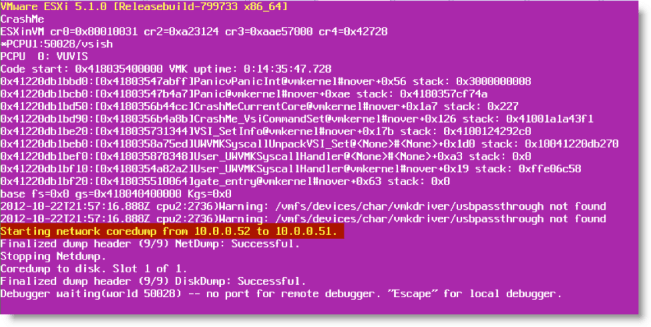
The “CrashME” PSOD

Here is the coredump file that was transmitted. Success!

The coredump file on the vCenter server in the repository

For more information check out these KB articles:

ESXi Network Dump Collector in VMware vSphere 5.x

Configuring the Network Dump Collector service in vSphere 5.x

VMware vSphere 5.1 now supports View 5.1.x

VMware has released an update for ESXi 5.1 (ESXI510-201210001) that addresses two issues related to PowerPath/VE 5.7 and an issue with the View Storage Accelerator and View 5.1. The issues that are resolved with the update have been highlighted on VMware’s website since they were identified.

Knowledge Base article KB:2034548 has the details for the update.

In addition to the online or offline patches, VMware has also provided an updated ESXi 5.1.0 ISO image available here.

vSphere page updated

I finally spent a little time and have updated the vSphere page to vSphere 5.1. I intend to build on the Knowledgebase article section as items come up with customers or from the classroom.

Clearing up an AD Lightweight Directory Service error on vCenter Server systems

Recently I was onsite with a customer helping them deploy a new vSphere 5.1 environment to host a new Exchange 2010 system. As part of the deployment, we setup Alan Renouf’s vCheck 6 script and started working through the process of setting it up to run as a scheduled task. As we were manually running the task we noticed that the output showed errors every minute for the AD Web Services and AD Lightweight Directory Services (ADAM).

We found the log entries in the AD Web Services log.

A little digging uncovered that the event 1209 error is reported when there is a problem with the port numbers in the registry for AD Web Services LDAP access (389/636).
http://blogs.technet.com/b/askds/archive/2010/04/09/friday-mail-sack-while-the-ned-s-away-edition.aspx#adws

On inspection of the registry key, the “Port SSL” type is incorrect and the data is missing. According to the Technet blog post, the value type should be “REG_DWORD” and the default data is 636.

I deleted the existing incorrect value and created a new value with the REG_DWORD type and the value data of 636 decimal.

Upon checking the Windows event logs, I could see that the AD Web Services was already using the corrected value, so no service restart was required.

The next log entry displayed the VCMSDS instance and LDAP/LDAPS (SSL) ports it is configured to use.

After this vCenter system was fixed, we checked all of the other vCenter servers onsite and found that their vCenter 4.1 server they were using for non-production also had the same error. That vCenter server was running on a Windows 2003 server and we did have to stop and restart the AD Web Services service to load the corrected SSL port value and resolve the error.

Thanks to Alan Renouf and the vCheck contributors at Virtu-Al.net for grabbing and displaying this error.

Working with Linux based virtual appliances

Recently I have been getting ready for upgrades and deployments of vSphere 5.1/vCloud Suite 5.1 in my lab abd at client sites. I have used the ESX Deployment Appliance for several years and have had good luck with it. This time I ran into an issue that caused me to remove and reinstall the virtual nic on the EDA appliance. I noticed that the ifconfig output looked odd and remembered that I should make sure that /etc/udev/rules.d/70-persistent-net.rules doesn’t have any entries with “old” MAC addresses, particularly for “eth0.”

As I was troubleshooting the “network is unreachable” error, I did a search and found a reference to documentation I used to regularly provide to customers that were deploying Linux VM’s from templates…

Remove network configuration
The MAC address of the VM’s virtual nic is written into the udev persistent rules and needs to be cleaned out as the cloned vm will have a different MAC address.
/etc/udev/rules.d/70-persistent-net.rules
Remove entries containing “eth0”

It had been a while since I wrote that and I am glad I still had it.

As soon as I cleaned out the old entries and restarted the VM, the networking came to life and I am now back to work!

Time to get this site back into gear!

I have had quite a number of adventures with IT in the last year. In that time, I have taught a number of vSphere 5 courses for VMware Education, Designed a couple of View 4.x and 5 environments for public sector clients. Designed and am now in the process of implementing a vCloud Director/vSphere 5 based environment to allow for and support the consolidation of up to 28 separate public sector departments, boards and commissions into a shared, consolidated infrastructure.
I have also recently been promoted to Chief Technical Officer of the consulting firm where I have worked for the past 11 years.
I have quite a large amount of documentation that I have produced and hope to go through those documents and pick out items that I found to be challenging to implement or poorly documented.

VSI vs VDI part 1

Virtual Server Infrastructure vs. Virtual Desktop Infrastructure, Part 1
I have been working almost exclusively on virtualization projects for most of the past 5 years. Before that I spent a lot of time on Citrix/terminal services projects with the associated profile, application delivery and Windows OS optimizations. During that whole time, there has been a constant drum beat from vendors about users sessions per server, users per CPU, users per core; then VM’s per server, VM’s per CPU, VM’s per core, etc. I come from a background in retail sales and single proprietor businesses and their IT operations and I “get” the lure of these ratios and the ROI calculations and purchase price justifications they facilitate.
So many of the server based computing lessons I learned in the 1990’s have served me well in the virtualization arena particularly in the early stages when existing server system “best practices” had resulted in the often stunning lack of correlation between the amount of resources being committed to a particular application and the actual measured resource utilization. Remember all those single role/application servers running on whole physical servers. As the “virtualization journey” progressed with customers, my experience with getting a lot of production out of a fixed set of resources has certainly paid dividends for me and my customers.
When we are dealing with servers and the back office applications that run on virtual servers, the reduction in assigned resources as the physical servers are virtualized and “right-sized” has generally had little negative effect on the user’s experience. In fact it allows us to deploy additional virtual servers to scale out and load balance server applications while still increasing the overall utilization of the available resources in our server rooms and data centers. I submit that in addition to the wide spread over provisioning of resources to applications, the general user community’s lack of connection to or understanding of the various components in our server closets, server rooms and data centers has given us an incredible margin for error as we correct some of our collective sins of the past. When a typical user is using an email system, they rarely consider whether the message they send to five colleagues is stored in one place or five places, they rarely have any understanding of the impact the quantity of deleted items they keep “just in case” has on the network or storage systems nor the roles of the various servers involved with authenticating users, routing messages, scanning the message contents, archiving messages for legal requests, etc. What they care about is whether or not messages are being sent and received and that their email client feels responsive.
Recently, I find myself returning to the customer desktops and the personal productivity applications associated with them. Just like my experience starting the 90’s with NT 4 terminal server, Citrix MetaFrame, Presentation Server and XenApp, the individual user experience is the key to success. I have Citrix installations that I designed and built 5-6 years ago that are as solid now as they were when they were deployed. The key then was to standardize the server builds, standardize the application builds, separate the user profiles from the terminal servers as best as possible and eliminate unnecessary files, services, applications, recurring background network traffic, and to optimize every component involved to get the right balance of reliability, performance and customer experience. We would go to great lengths to optimize OS and application features to gain very small incremental improvements. At that time, the user interfaces provided by Windows NT and Windows 2000 were much more like Windows 95 than they were like Windows Vista allowing a lot of room to optimize the systems for performance rather than individual customer taste and personalization. We also had the constant concern about multiple users sharing the same operating system instance and often this concern justified the highly managed (you know, “locked down”) user environment as a requirement for stability. Often, users that needed (probably more correctly expected or demanded) more flexibility or individual control of their computing environment were given a “personal” computer where they could have much more freedom to customize and change things without the restrictions imposed by the “shared” environment.
So, now we are in the “year(s?) of desktop virtualization” and expected to provide the consolidation ratios and the centralization of supporting resources associated with virtualization that are touted by vendors and their salespeople, but the game has changed. This time the costs are harder to offset. We can’t repurpose recent vintage desktop pc’s as hosts for the virtual desktops and transfer their operating system licenses, like we may have been able to do with server virtualization. If we install our virtual desktop client software on the user’s traditional desktop, then we don’t have to account for the cost of a replacement physical endpoint device, but we will still have to maintain, manage and license whatever operating systems and applications remain. If, on the other hand, we decide to replace the traditional desktop pc with some dedicated thin client device, the cost of these devices will be judged against the replacement cost of the traditional desktop pc’s. In either case, the cost of the virtual desktop connection brokers, the operating systems and applications running on the virtual desktops and the underlying virtualization platform including compute, networking and storage systems has to be considered. With server based applications the actual network and storage requirements for an individual user are aggregated with the other users of the various applications. For many customers (and they don’t really have to be very large) the sheer volume desktop pc resources in terms of CPU cycles, RAM in GB, network bandwidth per desktop NIC port and storage capacity in GB and throughput in IOPS versus their server infrastructure can be staggering. As a result, the resources required per user to deliver virtual desktops can be much greater than the per user resources required for server apps. Think about the requirements for an Exchange system with 500 mailboxes vs. the requirements for 500 virtual desktops with Outlook clients. While we can increase the user mailbox count on the Exchange system by using client-side features like cached mode in Outlook; when we do, we transfer some of the resource requirements, like the storage space for the cached mailbox copy, to our client systems, now running as VM’s that require resources in our server room or datacenter, not just out on the office floor with the users. In the example of Outlook cached mode consider that we now have an additional copy of a (or each) user’s mailbox being stored on our centralized storage systems. Now mailbox quotas could effectively cost twice! Get used to this kind of calculation – the desktop resource requirements are transferred from the individual dedicated computers to the shared infrastructure.

To be continued…