Upgrading vCenter Server to 5.5 in my lab – part 4

Upgrade to vCenter Server 5.5

This is the fourth post in a series of articles chronicling the process of upgrading my personal vSphere lab system from 5.1 to 5.5.

Before you get started with the upgrade, you should read the following KB article:

Upgrading to vCenter Server 5.5 on a Microsoft Windows platform (2058275)

Information Required for vCenter Server Installation or Upgrade

Upgrade procedure:

Mount the vSphere 5.5 installation media. The installation wizard appears.

In the left pane, under Custom Install, click vCenter Server and then click Install.
vcenter55-01
Note: If any of the prerequisites are not met, they are listed in the right pane under Prerequisites.

Select the appropriate language from the dropdown and the click OK.

In the welcome screen, click Next.
vcenter55-04
If a previous version of vCenter Server is installed, the welcome screen displays the message:
An earlier version of vCenter Server is already installed on this computer and will be upgraded to vCenter Server 5.5.0

Review the End User License Agreement. If you agree, select the I accept the terms in the license agreement option, and click Next.

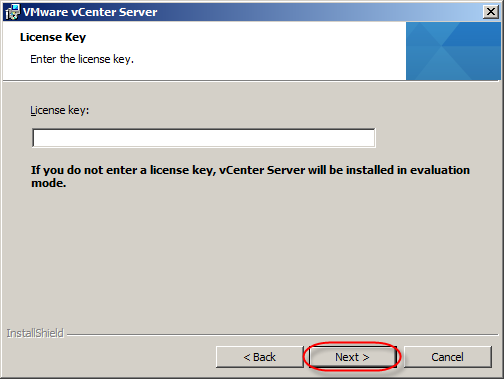
In the license key screen, enter your license key and then click Next. (If you have a valid vCenter 5.x license and are performing an upgrade, your existing key will work when the install is completed.)
vcenter55-06

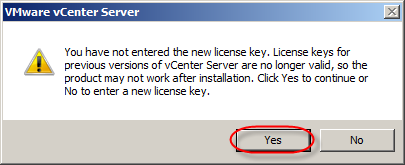
Note from the KB article: You can view your license keys in My VMware. For more information, see Viewing license keys in My VMware (2006831). If you do not enter a license key, you can proceed with a 60 Day Evaluation license and you see a popup, which prompts you to acknowledge that you are proceeding without a license.
vcenter55-07
Click Yes to proceed.

Enter the database user name and password for the existing database and click Next.
vcenter55-08

If you receive a warning about registered extensions like VMware vCenter Update Manager, Click OK. You will need to install compatible versions after the vCenter server install is complete.
vcenter55-09

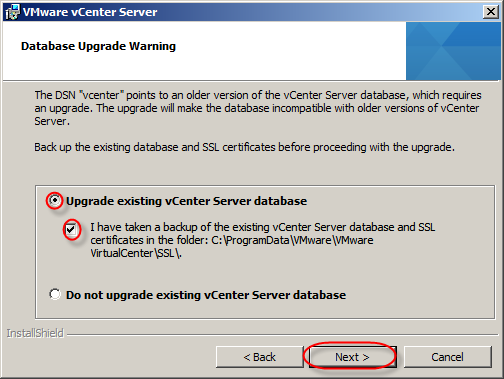
Select Upgrade existing vCenter Server database when prompted with the database upgrade warning:
vcenter55-10

Note: You must acknowledge that a backup has been taken of the vCenter Server database and SSL certificates.
Click Next.

Select automatic or manually upgrade the vCenter Agents that are installed on ESXi hosts. Click Next.
vcenter55-11

Select the user type that the vCenter Server should run with and click Next.
You can use one of these options:

    • Use Windows Local System Account
    • Use an alternate account  (In production deployments, I always use a specific account for the vCenter Server service.)

In this lab instance, I have used the Windows Local System Account.
vcenter55-12

Optionally, provide an alternative TCP port number for the VMware VirtualCenter Server service and click Next.
vcenter55-13
Note
: Changing the default ports is recommended only if you have an unchangeable port conflict on the same system.

Select one of these inventory sizes, Click Next.
vcenter55-14
Small is sufficient for my lab environment.

Enter the SSO Lookup Service URL and SSO administrator username and password. You may be prompted to install the Lookup Service Certificate.
vcenter55-15

Note: You must use the Fully Qualified Domain Name (FQDN) and not the IP address.  Using the IP  may result in certificate related errors when starting vCenter Server. For more information, see vCenter Server 5.x fails to start after upgrading Single Sign-On configuration from vSphere 5.1 to vSphere 5.5 (2058080).

Click Next.

When prompted, verify the fingerprint of the certificate and click Yes.
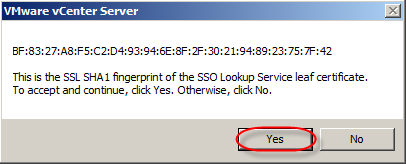
vcenter55-16

In the vCenter Inventory Service Information dialog, check if the FQDN of the vCenter Inventory Service URL and port number are displayed. These fields are auto-populated.
vcenter55-17
Notes
:

    • If the FQDN is not auto-populated, enter the FQDN manually.
    • The default port is 10443.

Click Next.
Optionally, provide an alternative installation location and then click Next. (The installer used the path from my existing vCenter server install.)
vcenter55-18

Notes from the KB article:

    • The installation path of vCenter Server must be compatible with the installation requirements for  Microsoft Active Directory Application Mode (ADAM/AD LDS). The  installation path cannot contain non-ASCII characters, commas (,), periods (.), exclamation marks (!), pound signs (#), at signs (@), or percentage signs (%).
    • The path must conform to NTFS naming restrictions.  For more information, see the Microsoft TechNet article Naming Files, Paths, and Namespaces.
    • The installation requires 4 GB of disk space to be available. For more information, see the Hardware Requirement for vCenter Server, the vSphere Web Client, vCenter Inventory Service, and vCenter Single Sign-On section in the vSphere Installation and Setup Guide.

In the Ready to Install screen, click Install.
vcenter55-19

Installing…
vcenter55-25

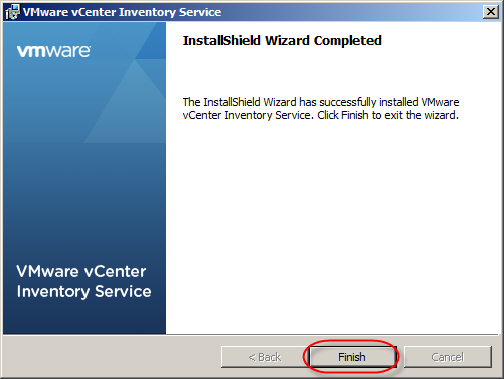
When the installation completes, click Finish.
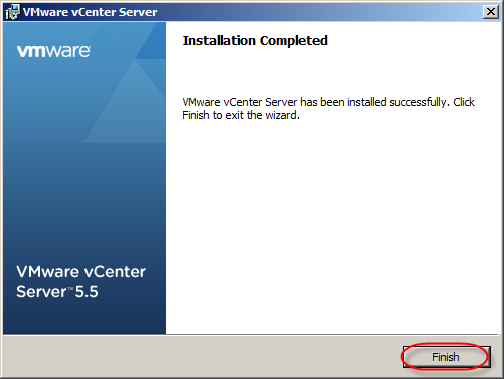
vcenter55-26

Installed programs showing upgraded vCenter Server and related components.
vcenter55-27

Next up is the upgrade of vCenter Update Manager.
Upgrading vCenter Server to 5.5 in my lab – part 3

Upgrade vCenter Inventory Service

This is the third post in a series of articles chronicling the process of upgrading my personal vSphere lab system from 5.1 to 5.5.

Before you get started with the upgrade, you should read the following KB article:

Upgrading to vCenter Inventory Service 5.5 on a Microsoft Windows platform (2058272)

Information Required for vCenter Inventory Service Installation or Upgrade

Upgrade Procedure:

Mount the vSphere 5.5 installation media.
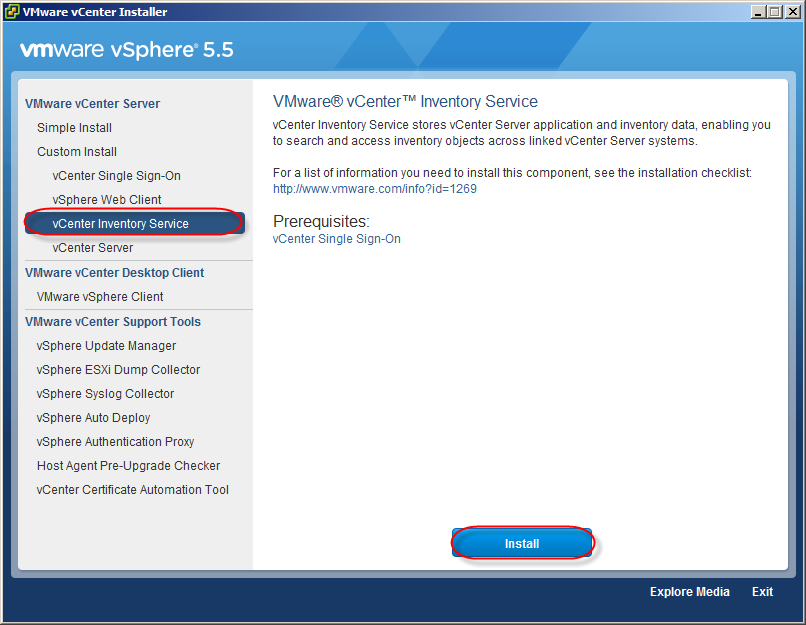
In the left pane, under Custom Install, click vCenter Inventory Service and then click Install.
inventory-service55-01
Note: If any of the prerequisites are not met, they are listed in the right pane under Prerequisites.

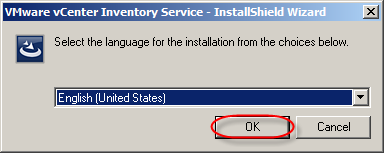
Select the appropriate language from the dropdown and click OK.
inventory-service55-02

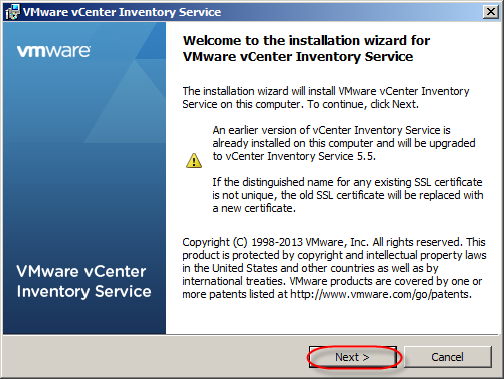
In the welcome screen, click Next.
inventory-service55-04
Note: If a previous version of vCenter Inventory Service is installed, the welcome screen displays the message:
An earlier version of vCenter Inventory Service is already installed on this computer and will be upgraded to vCenter Inventory Service 5.5.
If the distinguished name for any existing SSL certificate is not unique, the old SSL certificate will be replaced with a new certificate.

Review the End User License Agreement. If you agree, select the I accept the terms in the license agreement option and click Next.

Select one of these options when presented with a database re-initialization warning:

    • Keep my existing database – Select this option to retain your existing data in the vCenter Inventory Service.  (I selected this to keep my existing vCenter inventory data.)
    • Replace my existing database – Select this option to replace the existing database. You must acknowledge that a backup of the Inventory Service database and SSL certificates has been performed.

In the dialog that appears, check if the Fully Qualified Domain Name (FQDN) of the host where vCenter Inventory Service is displayed. This field is auto-populated.
inventory-service55-06

Notes from the KB article:

    • If this field is not auto-populated, enter the FQDN manually.
    • If there is an issue with DNS resolution, you see the error:
      The Fully Qualified Domain name could not be resolved using DnsQuery API..
      If you see this error, resolve the DNS resolution issue before proceeding.

Click Next.

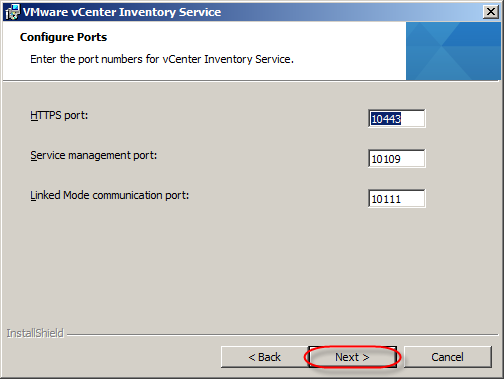
Optionally, provide an alternative TCP port number for the vCenter Inventory Service and click Next.
inventory-service55-07
Note: Changing the default ports is recommended only if you have an unchangeable port conflict in the same system.

Select the appropriate JVM memory size, depending on the environmental requirements. Click Next.
inventory-service55-08

Enter the SSO lookup Service URL and the SSO administrator username and password. You may be prompted to install the Lookup Service Certificate. Click Next.
inventory-service55-09

Notes from the KB article:

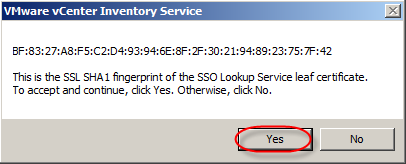
When prompted, verify the fingerprint of the certificate and click Yes to proceed.
inventory-service55-10
In the Ready to Install screen, click Install.
inventory-service55-11

Installing…
When the installation completes, click Finish.
inventory-service55-13
Installed programs showing the upgraded vCenter Inventory Service.
inventory-service55-14

Next up – the main event. Upgrading the vCenter Server to 5.5.


Upgrading vCenter Server to 5.5 in my lab – part 1

Upgrading vCenter Server 5.1 update 1 to 5.5 in my lab
Part 1

This past summer I had a student in one of my vSphere 5.1 Install, Configure and Manage courses who had attempted an upgrade from an earlier version of vSphere to 5.1 with disastrous results. This fellow was hopping mad and was not impressed by me asking him if he had read the upgrade guides or knowledgebase articles covering the proper sequence and compatibility issues he had encountered.

So with him in mind, I am documenting the process I followed to upgrade my lab vCenter Server and related components to vCenter Server 5.5.

My vCenter system is split between two windows 2008 R2 VMs. The vCenter server, SSO, Inventory service, ESXi Dump collector and vSphere Syslog Collector are on “vc5.mylab.local,” while the vSphere Web Client and vCenter Update Manager are installed on “app-01.mylab.local.” I have another Windows 2008 R2 VM running MS SQL Server 2008 R2 that handles the vCenter and Update Manager databases.

Here are the beginning software versions on my Windows 2008 R2 vCenter VM
vc55upgrade-01

In order to avoid the difficulties my former student encountered with a similar upgrade, check out the following before getting started with the upgrade:

VMware Product Interoperability Matrixes

vSphere Upgrade Guide

Best Practices for vCenter Server Upgrades

Required Information for Installing or Upgrading vCenter Single Sign-On, Inventory Service, vCenter Server and the vSphere Web Client  — Print this topic and use it as a worksheet for the upgrade and save it for later so you have the answers for the next upgrade!

Update sequence for vSphere 5.5 and its compatible VMware products (2057795)

Upgrade the various products in numerical order.

vc55upgrade-02

From the KB article:
Before you update the vCenter Server, disable vCenter Server from vCloud Director. Also ensure that you stop or disable other VMware services so that they do not communicate with vCenter Server during the update process.

In this article I will be running through the upgrade to vCenter Server 5.5 and its related products. The VMware KB article Methods of upgrading to vCenter Server 5.5 (2053130) describes the requirements for upgrading to vCenter 5.5. I will be following the order specified in the section “Upgrading components separately for vCenter server 5.5”:

  1. Upgrade vCenter Single Sign-On.
    For more information, see Upgrading to vCenter Single Sign-On 5.5 on a Microsoft Windows platform (2058249).
  2. Upgrade vSphere Web Client.
    For more information, see Upgrading to vSphere Web Client 5.5 on a Microsoft Windows platform (2058265).
  3. Upgrade vCenter Inventory Service.
    For more information, see Upgrading to vCenter Inventory Service 5.5 on a Microsoft Windows platform (2058272).
  4. Upgrade vCenter Server.
    For more information, see Upgrading to vCenter Server 5.5 on a Microsoft Windows platform (2058275).
  5. Upgrade vCenter Update Manager.
    For more information, see Upgrading to vSphere Update Manager 5.5 on a Microsoft Windows platform (2058423).


Upgrading vCenter Single Sign-On

Read the KB article below:
Upgrading to vCenter Single Sign-On 5.5 on a Microsoft Windows platform (2058249)

Information Required for vCenter Single Sign-On Installation

Follow the steps outlined in this KB article to back-up the existing 5.1 SSO database:

Backing up and restoring the vCenter Single Sign-On (SSO) 5.1 configuration (2034928) (You will need the “old” SSO admin password for this.) You won’t need the password for the upgrade.

You need to make sure that forward and reverse DNS lookups return the correct information about your SSO server and the vCenter server. See DNS Requirements for vSphere.

Additionally, you need to check the SSL certificate subject name and the registry of the VM running Single Sign-on. In my case SSO and vCenter server are installed on the same VM.

The registry key to check is referenced in this KB article:
Upgrade from vSphere 5.1 to vSphere 5.5 rolls back after importing Lookup Service data (2060511)

Check the HKEY_LOCAL_MACHINE\Software\VMware, Inc.\VMware Infrastructure\SSOServer\FQDNIp registry key value:

  • If the registry key value is an IP address, this issue might affect your system.
  • If the registry key value is set to the FQDN value you see in the certificate, your system is       not affected by this issue.

The installer will perform a prerequisite check, but it will not stop you from proceeding if the values do not match.

For example:

vc55upgrade-04

If there is a mismatch, you need to change the registry value to match the “Subject” name used for the SSL certificate.

vc55upgrade-03


Upgrade procedure:

Mount the vSphere 5.5 installation media.

Note: I prefer to browse the install media and launch the “autorun.exe” with the “Run as Administrator.”
If you are prompted by User Account Control, click Yes.

In the left pane, under Custom Install, click Single Sign-On Install and then click Install.
vc55upgrade-07

Note: If any of the prerequisites are not met, they are listed in the right pane under Prerequisites.

In the welcome screen, click Next.
vc55upgrade-09

If a previous version of vCenter Single Sign-On (SSO) is installed, you see this message in the welcome screen:
An earlier version of vCenter Single Sign-On is already installed on this computer and will be upgraded to vCenter Single Sign-On 5.5.0.

Review the End User License Agreement. If you agree, select the I accept the terms in the license agreement option and then click Next.

Review the Prerequisites check screen and then click Next.
vc55upgrade-11

The installer notifies that a previous version is detected and that Users, Groups, Solution Users, and Lookup Service artifacts will be migrated.

Click Next.
vc55upgrade-12

Select a deployment mode and click Next.
vc55upgrade-13

vCenter Single Sign-On for your first vCenter Server – Select this option to deploy your first SSO server. This server becomes the first SSO server in a new vSphere authentication domain.
After you select this option:
Provide a password for the SSO administrator user and click Next.
vc55upgrade-14

Note from the KB article: This dialog shows information related to a domain by the name vsphere.local.  This is not a domain that is auto-detected within the existing environment, but a net new domain used      internally by vSphere. The administrator@vsphere.local account performs the same function as the admin@System-Domain account in previous versions of vSphere. For more information about the administrator@vsphere.local account,  see the vSphere Software Components section of the vCenter Server and Host Management Guide.

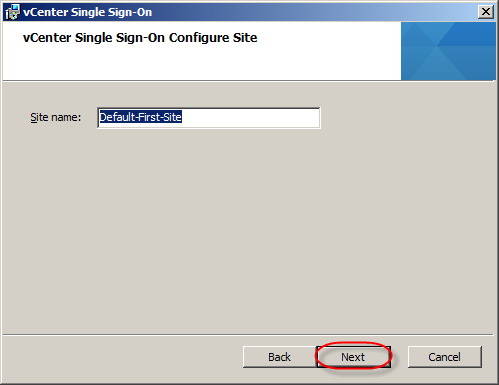
Provide a site name and click Next.
vc55upgrade-15

Note: The site name is used in environments where there are SSO servers in multiple sites. Ensure to select this name carefully because it cannot be changed in the vSphere Web Client after the installation  completes. “Default-First-Site” is the default site name.

Optionally, provide an alternative installation location and then click Next. (I had previously installed SSO to the “D:” drive on my VM.)
vc55upgrade-18

Notes:
The installation requires 2 GB of disk space to be available.
In the vCenter Single Sign-On Information screen, click Install.
vc55upgrade-19

Installing…

vc55upgrade-20

When the installation completes, click Finish.

vc55upgrade-21

vCenter SSO 5.5 upgraded!
vc55upgrade-22

The first component is now upgraded. Next up is upgrading the vSphere Web Client to 5.5.

Free VMware self-paced eLearning courses

Are you looking for basic understanding of some of VMware products outside of just the core of vCenter and ESXi? If so, check out the free elearning courses offered by VMware Education. There are courses on Site Recovery Manager, vFabric, vCenter Operations Manager, vShield, vCloud Director, VMware View and What’s New in vSPhere 5.1. In addition there are courses on virtualizing Microsoft Tier 1 applications like Exchange 2010, SQL server and SharePoint.

The courses are the same content that VMware partners have used to attain accreditation for delivering VMware solutions for disaster recovery and virtualizing business critical application.

While these courses won’t replace VMware Education’s live online or instructor lead classes, they will help you to get a basic understanding of concepts, capabilities and design choices when working with the various products.

The english language version is available here.

Over 50 Free Instructional Videos from VMware

Earlier this month, VMware launched a new site, VMwarelearning.com with 50+ technical videos. These videos offer tips, design guidelines, best practices and product feature knowledge from VMware technical experts. This is a terrific way to get valuable information and technical expertise for FREE!

Configure vSphere 5.1 for remote debug logging

Recently I have been working with customers on designs for new vSphere 5.1 installs and upgrades. As part of the design, I have been specifying the installation and configuration of the vSphere ESXi Dump Collector service on their Windows vCenter Server. The ESXi dump collector service allows the collection of the diagnostic dump information generated when an ESXi host has a critical fault and generates a “purple diagnostic screen.”

This post is a walk through of installing and configuring the ESXi Dump Collector service on vCenter and configuring an ESXi host to use it.

The Windows Server 2008 R2 VMs I use for vCenter are configured with additional drives for installing applications and storing data. In this example from my virtual lab, I have a “d:\” drive for applications and data.

Install the vSphere ESXi Dump Collector

The installer for the dump collector in included on the vCenter installer ISO image. I mount the ISO image to the Windows 2008 R2 VM where I have installed vCenter server.

Launch “autorun.exe” as an administrator.

From the VMware vCenter Installer, select “VMware vSphere ESXi Dump Collector”. Then click “Install” to begin the installation.

After the installer starts, select “English” as the language.

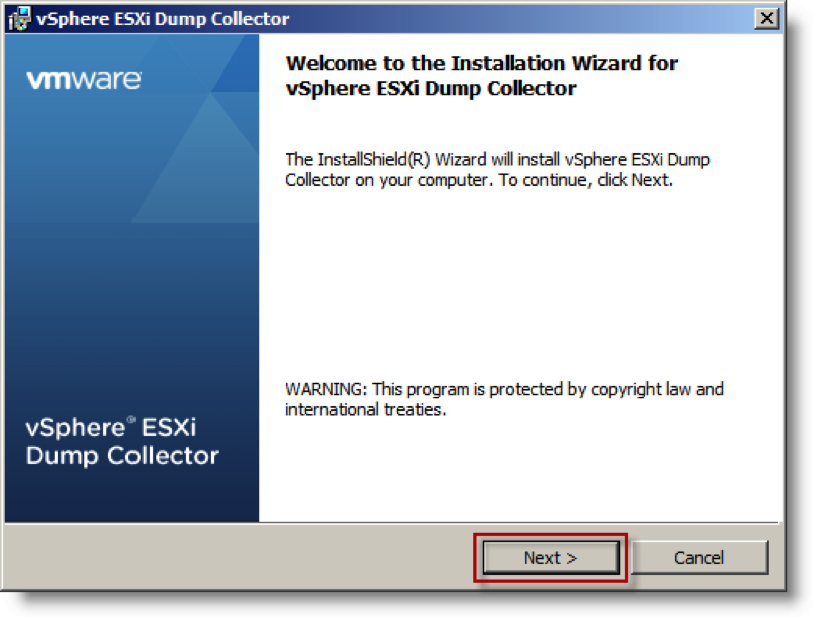
On the Welcome… page, click “Next >.”

On the End User Patent Agreement page, click “Next >.”
On the End User License Agreement page, select “I accept…”; click “Next >.”
On the Destination Folder page, click the “Change…” button beside “vSphere ESXi Dump Collector repository directory:”
On the Change Current Destination Folder page, change the “Folder name:” value to “d:\…”. Click “OK.”
Back on the Destination Folder page, observe that the path has been updated and click “Next >”

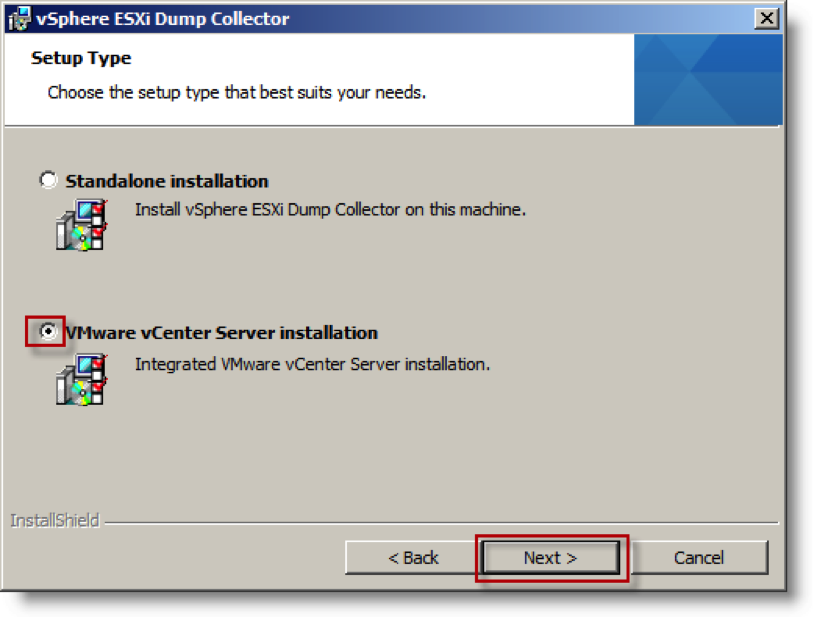
On the Setup Type page, select “VMware vCenter Server installation”, then click “Next >.”

On the VMware vCenter Server Information page, enter the appropriate information for connecting to vCenter. Click “Next >” to continue.

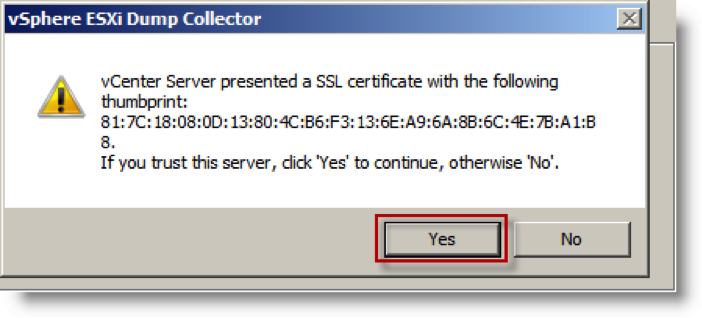
If you are using the default self-signed SSL certificate for vCenter, you will receive a message with the SHA1 thumbprint value for the vCenter server’s certificate.  Click “Yes” to trust that the certificate for connecting to the vCenter server.

You can verify the thumbprint by looking at the certificate properties on your vCenter server.  Notice that the thumbprint from the installer matches the thumbprint on the vCenter server’s certificate.

On the vSphere ESXi Dump Collector Port Settings page, click “Next >” to accept the default value of UDP port 6500.

On the vSphere ESXi Dump Collector Identification page, select the FQDN of the vCenter server and click “Next >.”

On the Ready to Install page, click “Install.”

After the installer has completed, click “Finish” on the Installer Completed page.

You can view the configured settings with the vSphere Client by selecting VMware ESXi Dump Collector from the Administration page.

You can also view the configuration with the vSphere Web Client by selecting the vCenter server, then browsing to the “Manage” tab and selecting “ESXi Dump Collector” under “Settings.”

Configuring an ESXi host to transmit the core dump over the network to the dump collector service.

Now that we have installed the dump collector service, we need to configure the ESXi hosts to send their diagnostic dump files to the vCenter server.
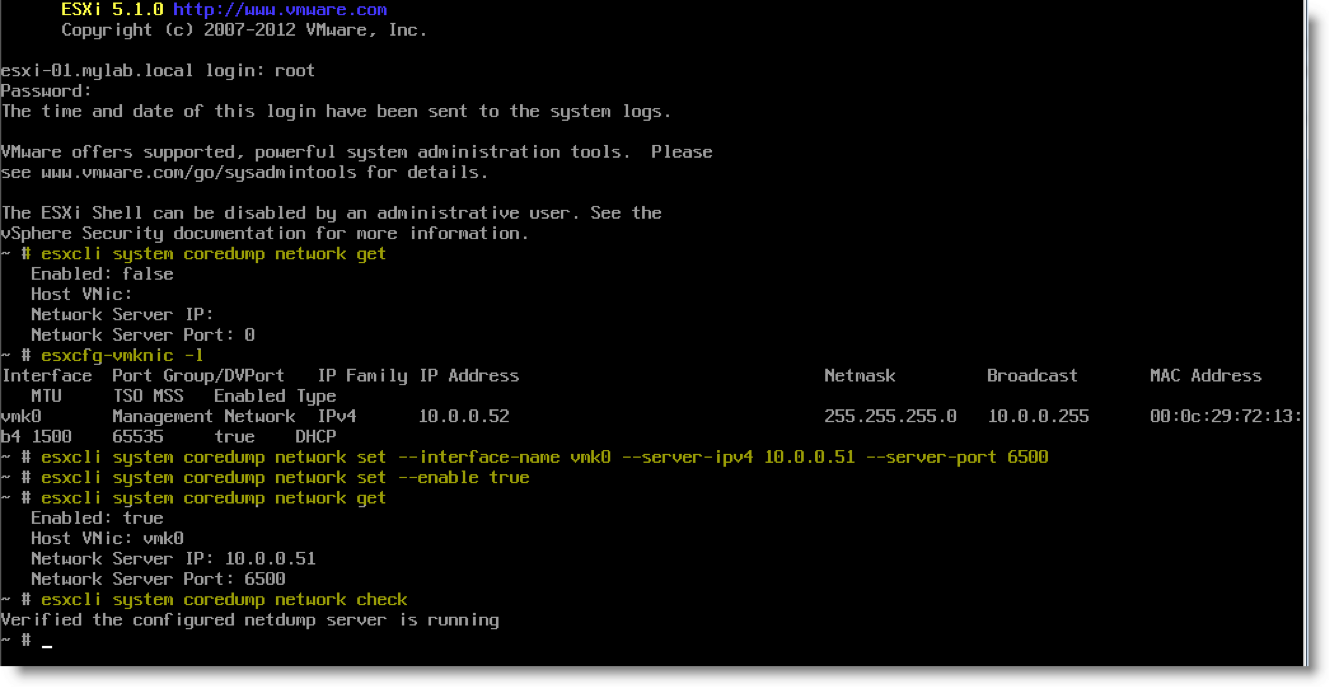
I set this up through the ESXi console. You will notice that I am logged in a “root” as I had not configured the ESXi host to use Active Directory authentication yet. Any user account that has the “administrator” role on the ESXi host can configure these settings.

First, checked the current coredump network configuration:

~ # esxcli system coredump network get
   Enabled: false
Host VNic:
Network Server IP:
Network Server Port: 0

Next, I confirmed the name of the vmkernel connection I planned to use: “vmk0” with the old “esxcfg-vmknic -l” command

Then, I configured the system to send coredumps over the network through the “vmk0” vmkernel port to my vCenter server’s IPv4 address at port 6500:

~ # esxcli system coredump network set –interface-name vmk0 –server-ipv4 10.0.0.51 –server-port 6500

You have to enter the interface name and server IPv4 address. The port is optional if you are using the default of 6500.

Then, I enabled the ESXi host to use the dump collector service:
~ # esxcli system coredump network set –enable true

I verified that the settings were correctly configured:
~ # esxcli system coredump network get
   Enabled: true
Host VNic: vmk0
Network Server IP: 10.0.0.51
Network Server Port: 6500

I checked to see if the server was running:
~ # esxcli system coredump network check
Verified the configured netdump server is running
~ #

Here is a screenshot of the process:

FYI, by default, the diagnostic dump file (core dump) is stored on a local disk partition of the ESXi host. You can find the local partition from the local ESXi console (if it is enabled) with the following command:

# esxcli system coredump partition get

I have highlighted the command in the figure below:

More information about managing the ESXi core dump disk partition is in the online documentation here.

Now that the vCenter server has the dump collector service installed and the ESXi host is configured to use it, I had to try it out!

Using the vsish tool and specific setting that Eric Sloof or NTPRO.NL described in his post “Lets create some Kernel Panic using vsish“, I crashed the ESXi host. As you can see in the screenshots, I was rewarded with a purple screen and success with transmitting the dump over the network to my vCenter server!

The “CrashME” PSOD

Here is the coredump file that was transmitted. Success!

The coredump file on the vCenter server in the repository

For more information check out these KB articles:

ESXi Network Dump Collector in VMware vSphere 5.x

Configuring the Network Dump Collector service in vSphere 5.x

VMware vSphere 4.0 Update 2 is released

This evening VMware released Update 2 for ESX/ESXi 4, vCenter Management Server 4, vCenter Update Manager 4 and VMware Data Recovery.
A quick scan of the ESX 4 Update 2 release notes shows expanded support for FT on Intel i3/i5 Clarkdale, Xeon 34xx Clarkdale and Xeon 56xxx processors. Support for IOMMU on AMD Opteron 61xx and 41xx processors. Guest OS support for Ubuntu 10.04 and improvements to esxtop and resxtop to include NFS performance statistics Reads/s, Writes/s, MBRead/s, MBWrtn/s, cmd/s and gavg/s latency. Included in the resolved issues is a change in the way the Snapshot Manager “Delete All” operation works. In previous versions the snapshot farthest away from the base disk was committed to its immediate parent, then that parent would be committed to its parent until the last remaining snapshot is committed to the base. The release notes report that this operation will now start with the snapshot closest to the base disk and work toward the farthest. This should reduce the amount of disk space required during the “delete all/commit” operation and reduce the amount of data that is repeatedly committed. I think this is a great change. I have seen customers run out of space in datastores when the failed to keep track of active snapshots and didn’t understand the “delete all/commit” process.

The vCenter Management Server 4 Update 2 release notes list support for guest customization of:

◦Windows XP Professional SP2 (x64) serviced by Windows Server 2003 SP2
◦SLES 11 (x32 and x64)
◦SLES 10 SP3 (x32 and x64)
◦RHEL 5.5 Server Platform (x32 and x64)
◦RHEL 5.4 Server Platform (x32 and x64)
◦RHEL 4.8 Server Platform (x32 and 64)
◦Debian 5.0 (x32 and x64)
◦Debian 5.0 R1 (x32 and x64)
◦Debian 5.0 R2 (x32 and x64)

Among the resolved items, there is an update JRE (1.5.0_22) and number of fixed related to Host Profiles, support for vSwitch portgroup named longer than 50 characters, advanced settings to allow the use vDS connections as additional HA heartbeat networks, the addision of a parameter in vpxd.cfg to set a greater timeout value for VMotion operations involving VMs with swap files on local datastores, among many others. In the known issues section is astatement that while USB controllers can be added to VMs, attaching USB devices is not supported and that vSphere Web Access is experimentally supported.

The vCenter Update Manager 4 Update 2 release notes list improvement of operations in low bandwidth, high latency and slow networks, including a reference to KB 1017253 detailing the configuration of extended timeout values for ESX, vCenter and Update Manager Update 2.
The compatability matrix shows that Update Manager 4 Update 2 is only compatible with vCenter Management Server 4 Update 2.

VMware Data Recovery Update 2 includes the following new items:

The following enhancements have been made for this release of Data Recovery.

•File Level Restore (FLR) is now available for use with Linux.
•Each vCenter Server instance supports up to ten Data Recovery backup appliances.
•The vSphere Client plug-in supports fast switching among Data Recovery backup appliances.
•Miscellaneous vSphere Client Plug-In user interface enhancements including:
◦The means to name backup jobs during their creation.
◦Additional information about the current status of destination disks including the disk’s health and the degree of space savings provided by the deduplication store’s optimizations.
◦Information about the datastore from which virtual disks are backed up.

The support for up to 10 Data Recovery appliances per vCenter will allow up to 1000 jobs (100 per appliance x10), this is a significant increase in backup capacity.

The build numbers for the various items are:

ESX 4.0 Update 2 Build 261974
ESXi 4.0 Update 2 Installable Build 261974
ESXi 4.0 Update 2 Embedded Build 261974
VMware Tools Build 261974
vCenter Server 4.0 Update 2 Build 258672
vCenter Update Manager 4.0 Update 2 Build 264019

vSphere 4 Update 2 components can be downloaded here.

VMware Workstation 7.1 is here!

VMware released VMware Workstation 7.1 Fusion 3.1 today. From VMware’s Workstation 7.1 Release Notes:

New Support for 32-Bit and 64-Bit Operating Systems

This release provides support for the following host and guest operating systems:

Operating System
Ubuntu 8.04.4 Host and guest
Ubuntu 10.04 Host and guest
OpenSUSE 11.2 Host and guest
Red Hat Enterprise Linux 5.5 Host and guest
Fedora 12 Guest
Debian 5.0.4 Guest
Mandriva 2009.1 Guest

New Features in VMware Workstation
•OpenGL 2.1 support for Windows 7 and Windows Vista guests — Improves the ability to run graphics-based applications in virtual machines.
•Improved Graphics Performance — Enhanced performance with better benchmarks, frame rates, and improved rendering on Windows 7 and Windows Vista guests allows you to run various graphics-based applications. In addition, major improvements in video playback enable you to play high-resolution videos in virtual machines.

•Automatic Software Updates — Download and install VMware Tools and receive maintenance updates when available.

•Direct Launch — Drag guest applications from the Unity start menu directly onto the host desktop. Double-click the shortcut to open the guest application. The shortcut remains on the desktop after you exit Unity and close VMware Workstation.

•Autologon — Save your login credentials and bypass the login dialog box when you power on a Windows guest. Use this feature if you restart the guest frequently and want to avoid entering your login credentials. You can enable Autologon and use direct launch to open guest applications from the host.

•OVF 1.1 Support — Import or export virtual machines and vApps to upload them to VMware vSphere or VMware vCloud. The VMware OVF Tool is a command-line utility bundled in the VMware Workstation installer. Use this tool along with VMware Workstation to convert VMware .vmx files to .ovf format or vice versa. VMware recommends that you use the OVF command-line utility. For more information, see the OVF Web site and OVF Tool User Guide.

•Eight-Way SMP Support — Create and run virtual machines with a total of up to eight-processor cores.
•2TB Virtual Disk Support — Maximum virtual disks and raw disks size increased from 950GB to 2TB.
•Encryption Enhancements — VMware Workstation includes support for Intel’s Advanced Encryption Standard instruction set (AES-NI) to improve performance while encrypting and decrypting virtual machines and faster run-time access to encrypted virtual machines on new processors.
•Memory Management — User interface enhancements have simplified the handling of increased virtual memory capacity.

•User Experience Improvement Program — Help VMware improve future versions of the product by participating in the User Experience Improvement Program.

VMware Fusion 3.1 was also released today. The following excerpt from the release notes list new features in this release:

VMware Fusion 3.1 has a large number of new and improved features, including:

New Features

•8-way SMP
•2 TB Virtual Disks
•OpenGL 2.1 for Vista
•OpenGL 2.1 for Windows 7
•Support for overlapping Unity windows in Exposé and Dock Exposé
•USB “EasyConnect” to easily assign USB devices to virtual machine or Mac when connected
•OVF Tool for Mac OS X now included as optional install with full download or CD install
•OVF Tool 2: Import and export OVF packaged virtual machines and upload to vSphere with bundled OVF Tool
•Drag a disk image or virtual disk to the installation media pane of the assistant
•Add shortcut for opening a virtual machines configuration file in default text editor for VMware Fusion (Hold down option and right-click in Virtual Machine Library)
•User Experience Improvement Program

Graphics Improvements

•Aero is much faster on Windows Vista and Windows 7
•Greatly improved scrolling speeds in Windows Vista and Windows 7 with latest Mac OS X release
•Some games up to 10x faster than VMware Fusion 3.0 with VMware Fusion 3.1 and latest Mac OS X release
•Improved performance and better compatibility for both DirectX 9 and OpenGL 3D applications

Boot Camp Improvements

•Up to 5x disk performance in Boot Camp virtual machines
•New option to minimize prompting for password (authentication dialogs) when using Boot Camp virtual machines
•Handle Mac OS X disk changes better to avoid multiple references to Boot Camp partition in the Virtual Machine Library

PC Migration Improvements

•Improvements to Migrate Your PC assistant, including better validation of names and better location prompt
•Prompt user if Mac OS X guest account prevents guest access to shared folders instead of failing
•Open new virtual machine on successful migration
•Enhanced user interface on PC being migrated including:
◦New progress dialog on the PC being migrated as well as in VMware Fusion
◦Option to show converter logs and troubleshooting steps on PC if PC migration fails
•Avoids port conflicts with Web server software installed on PC such as IIS, Tomcat, and Apache

New Guest Operating Systems Supported

•Ubuntu 8.0.4.4: 32- and 64-bit
•Ubuntu 10.04: 32- and 64-bit (currently in Beta)
•SUSE Linux Enterprise Desktop 11 Service Pack 1: 32- and 64-bit
•SUSE Linux Enterprise Server 11 Service Pack 1: 32- and 64-bit
•RHEL 5.4: 32- and 64-bit

My copy of Workstation 7.1 is downloading now. I have been using workstation since the original alpha and beta of “VMware” and can’t wait to get this latest version of installed!

New VMware Advanced Certifications announced

VMware Education has announced their new VMware Certified Advanced Professional (VCAP) Certification specialties VCAP4-Datacenter Administrator (VCAP4-DCA) and VCAP4-Datacenter Design (VCAP4-DCD).

VMware Certified Advanced Professional 4 -Datacenter Administration (VCAP4-DCA)
The VCAP-DCA is directed toward System Administrators, Senior Consultants and Technical Support Engineers who work with large and more complex virtualized environments and can demonstrate technical leadership with vSphere technologies. Successful candidates are able to use automation tools, to plan and design virtualized solutions and to administer all vSphere Enterprise components. Registration opens July 12. Learn more about this VCAP specialty.

VMware Certified Advanced Professional 4-Datacenter Design (VCAP4-DCD)
The VCAP-DCD is directed toward IT Architects and Consulting Architects who design VMware solutions in a multi-site, large enterprise environment. They have a deep understanding both of VMware core components and their relation to storage and networking as well as datacenter design methodologies. They also possess knowledge of applications and physical infrastructure, as well as their relationship to the virtual infrastructure. Registration opens in August. Learn more about this VCAP specialty.

Advanced Courses Created to help you Achieve Your New Certification Goals
VMware has designed several courses to help VCPs ramp their skills in preparation for VCAP certification exams.

VCAP-DCA Recommended Training
VMware vSphere: Troubleshooting [V4]
VMware vSphere: Manage for Performance [V4]

VCAP-DCD Recommended Training
VMware vSphere: Design Workshop [V4]

I have participated in “Train the Trainer” versions of each of the three courses listed above and heartily recommend them. Even if you do not anticipate pursuing advanced certification, these courses will greatly enhance your virtualization skills. If you later decide to pursue the advanced VMware credentials, you will be well on your way. These new specialties follow on after the VMware Certified Professional 4 (VCP4) exam and define the prerequisites along the path to VMware Certified Design Expert 4 (VCDX4) VMware premier certification. For more information on the VCDX4 Certification follow this link.

VMware Partner Exchange 2010

I just booked my flight to Las Vegas for VMware’s Partner Exchange. I will be attending the partner “Post-Sales Accreditation Bootcamp” on the weekend and staying for a couple of VMware View 4 design session on Tuesday. I have a cousin who lives in Las Vegas and Friday is his birthday. If I can locate him I will look him up! Thanks to my boss for picking up the tab! I will make sure he and the rest of our company gets a great return on the investment!